Generating your model
What happens after you click Generate BIM, how long it takes, and how to follow the progress.
Before you start
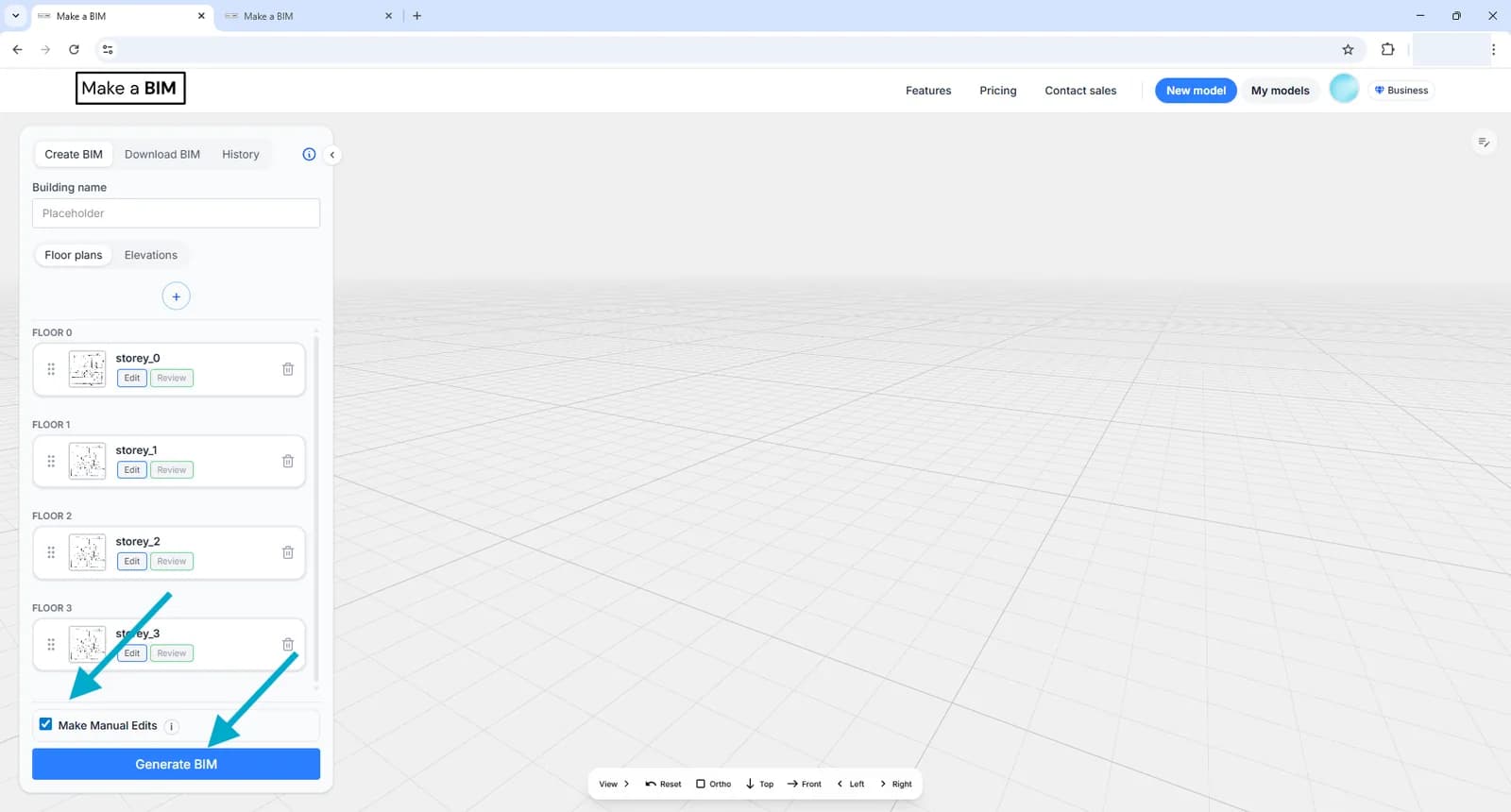
Once your drawings are uploaded, ordered and scaled, there is one decision left before generation: whether you want to review the result in 2D first.
- Check Make Manual Edits to review and correct the detected walls, doors and windows in the 2D editor before the BIM is finalized.
- Leave it unchecked to generate the finished model in one pass, without an editing step.
Then click Generate BIM.
How long generation takes
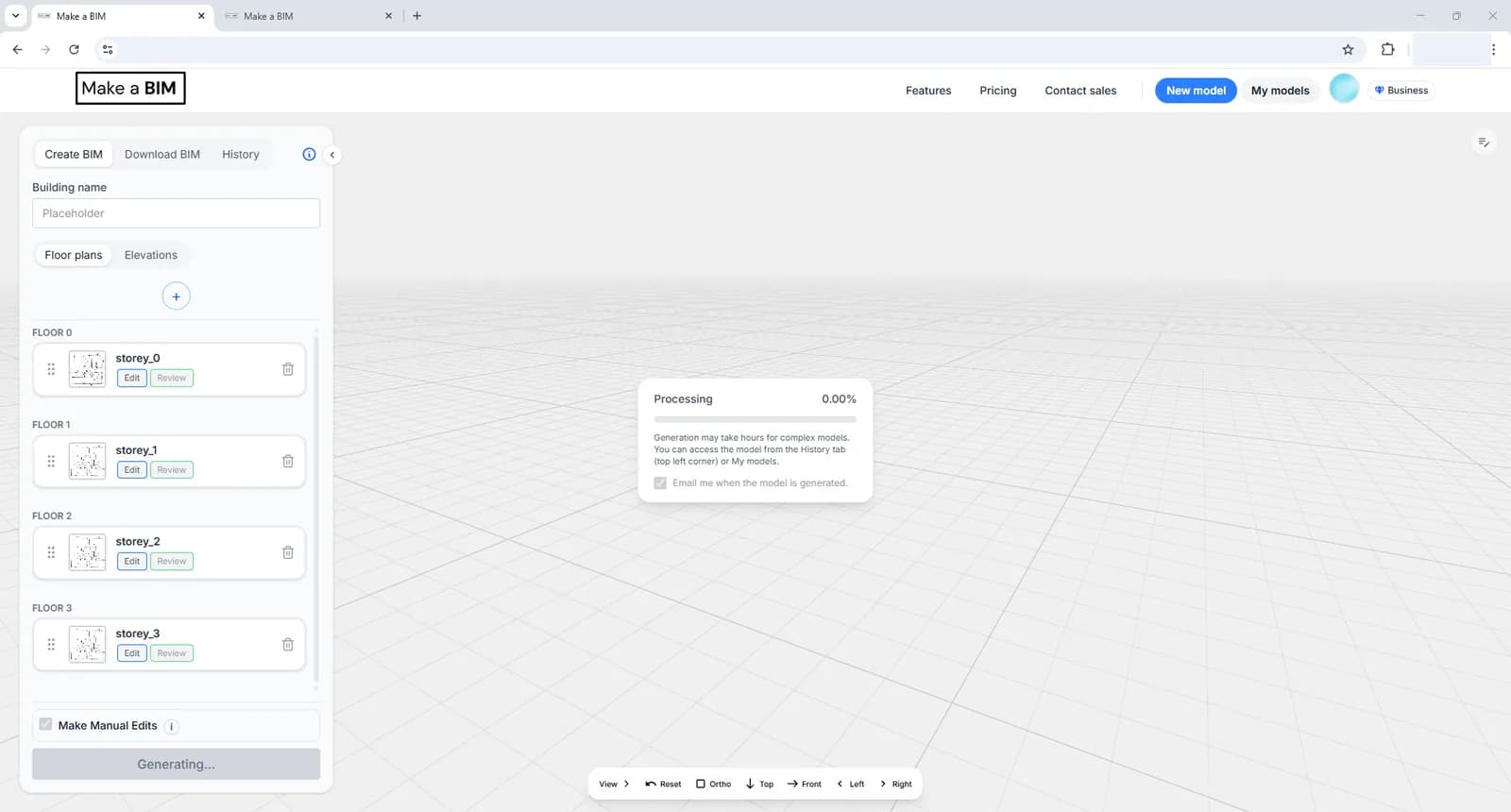
Generation takes a while. Depending on the complexity of the building, it can take from around 5 minutes to several hours — a typical small example building takes about 8 minutes.
Following progress in History
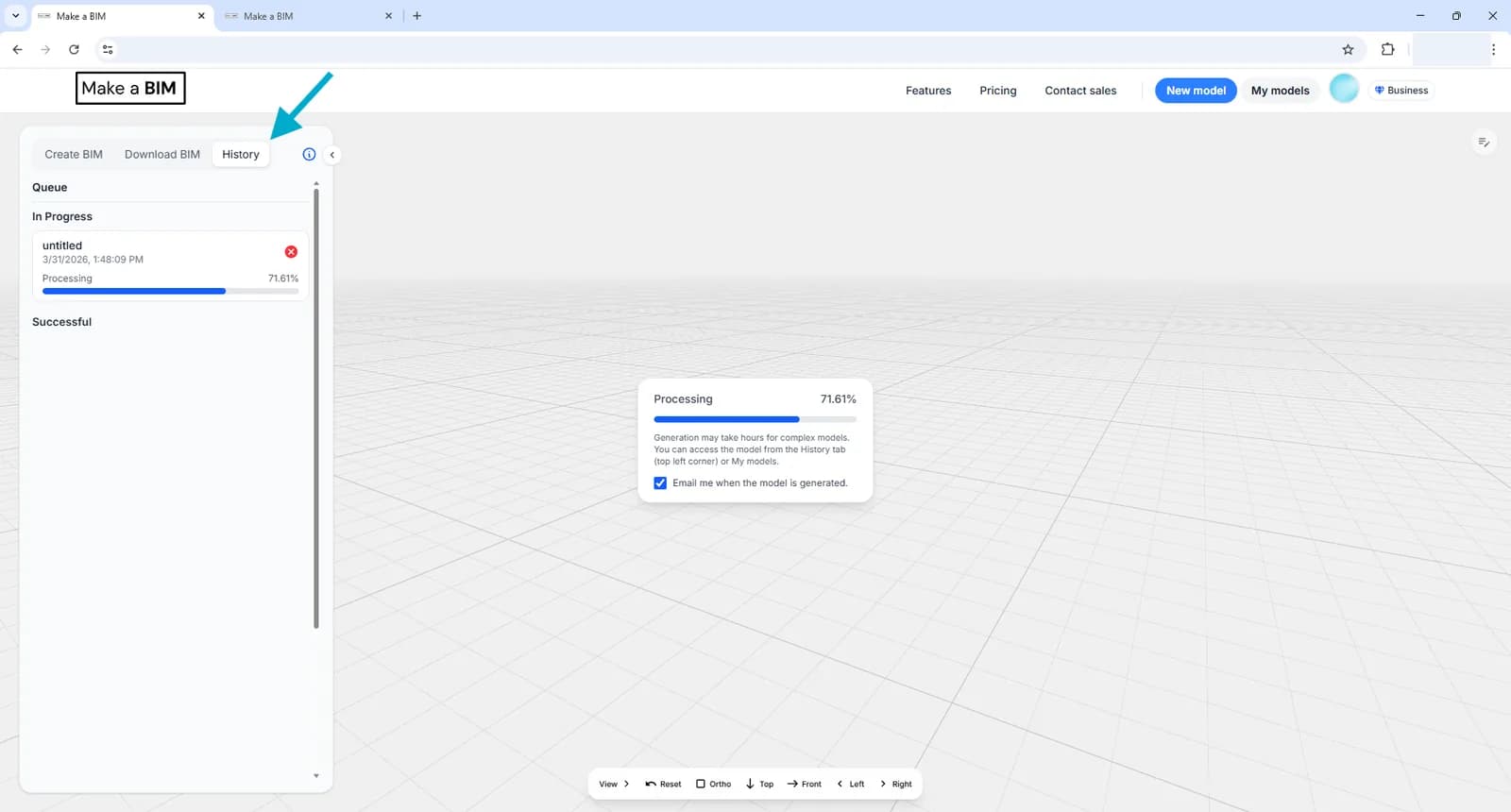
You don't need to keep the tab open. If you close makeabim.com, you can come back and pick up the generation progress from the History tab in the left panel. Every model you generate is listed there, along with its current status.
You can also choose to be notified by email when a model finishes, so you don't have to watch the page at all.
What happens next
- If you selected Make Manual Edits, the 2D editor opens automatically when generation completes. Review each drawing, make your corrections, and then click Finalize BIM Generation.
- Otherwise the app switches to the Download BIM tab, where you can preview the model in 3D and download it.
You can reopen any model later for editing from History by clicking its Edit button.