Exporting your model
Download formats, what data is included, and which BIM software your export will open in.
Downloading a model
Open the Download BIM tab and click Download BIM. Unless you're on the Business tier, this also shows you the price for that model first. Pick the format you want from the dropdown menu next to the button.
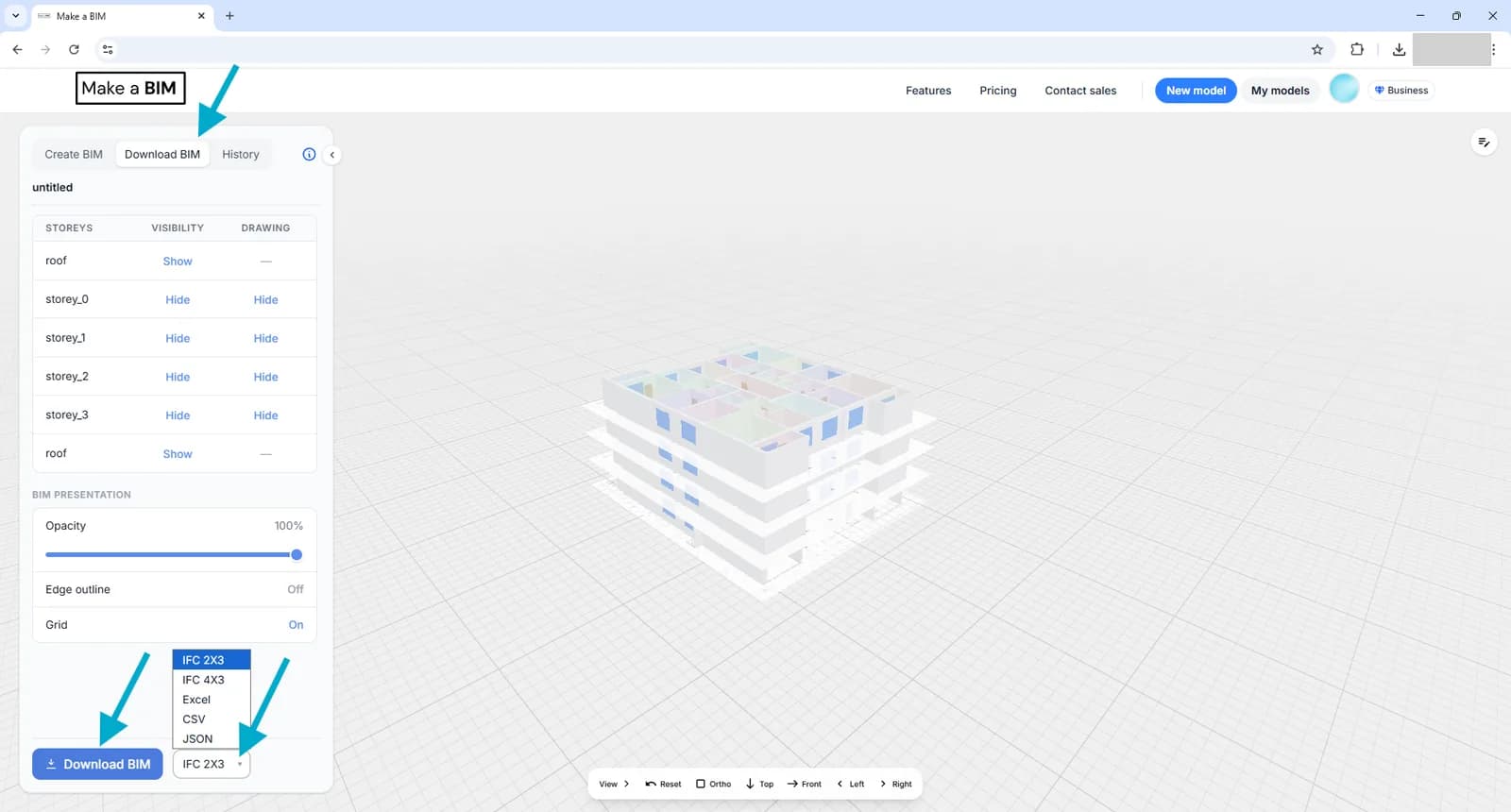
Download formats
- IFC 2X3 — the most widely supported IFC version, for maximum compatibility with older software.
- IFC 4X3 — the newer IFC schema, for software with up-to-date support.
- Excel — a structured spreadsheet of the model's elements and quantities.
- CSV — the same structured data in a plain, script-friendly format.
- JSON — the same data again, for programmatic use.
The Excel, CSV and JSON formats are lists of the model's objects and their data, intended for quantification tasks rather than for opening as geometry.
Every element in the model follows the standard IFC hierarchy — walls, windows, doors, slabs and spaces are exported as IfcWall, IfcWindow, IfcDoor, IfcSlab and IfcSpace respectively, each with a shared type across the model (for example, all exterior walls of the same construction share one wall type) and useful properties such as whether a wall is exterior or interior.
Compatible software
Because the export is a standard IFC file, it opens in any BIM software that supports IFC import, including Revit, Archicad, IDA ICE and Solibri.
Importing into Revit or Archicad using their built-in IFC importer (File → Open → IFC) converts the model into fully editable, native objects — an IFC wall becomes a native Revit or Archicad wall, sharing a type with other walls of the same kind in the model.
Saving edits before download
If you've made changes in the 2D editor or 3D viewer that haven't been saved yet, the download button is replaced with Save Changes. Save first, then download — this guarantees the file you download always matches what you see on screen.
Downloading through the API
The same exports are available programmatically: /api/download_ifc_by_model_id for IFC and /api/export_model for JSON, CSV and Excel — see the API documentation.